
1. Enable Unknown Sources
Go to Settings > Security (or Privacy, depending on your Android version).
Enable “Install from Unknown Sources” or “Install unknown apps.”
Select your browser (e.g., Chrome) and allow installations from that source.
2. Download the APK File
Visit the official guide page: https://www.bingeiptv.com/guide/
Select your preferred device type (Android Device).
Click the download link provided under your selected device.
3. Install the APK
Open the downloaded APK file (usually found in your Downloads folder).
Tap Install.
Wait for the installation to complete.
4. Login & Setup
Open the BingeIPTV app.
Enter the Username, Password, and Server URL provided by your IPTV service provider.
1. Enable Unknown Sources
Go to Settings > Security (or Privacy, depending on your Android version).
Enable “Install from Unknown Sources” or “Install unknown apps.”
Select your browser (e.g., Chrome) and allow installations from that source.
2. Download the APK File
Visit the official guide page: https://www.bingeiptv.com/guide/
Select your preferred device type (Android Device).
Click the download link provided under your selected device.
3. Install the APK
Open the downloaded APK file (usually found in your Downloads folder).
Tap Install.
Wait for the installation to complete.
4. Login & Setup
Open the BingeIPTV app.
Enter the Username, Password, and Server URL provided by your IPTV service provider.
1. Enable Unknown Sources
Go to Settings > Security (or Privacy, depending on your Android version).
Enable “Install from Unknown Sources” or “Install unknown apps.”
Select your browser (e.g., Chrome) and allow installations from that source.
2. Download the APK File
Visit the official guide page: https://www.bingeiptv.com/guide/
Select your preferred device type (Android Device).
Click the download link provided under your selected device.
3. Install the APK
Open the downloaded APK file (usually found in your Downloads folder).
Tap Install.
Wait for the installation to complete.
4. Login & Setup
Open the BingeIPTV app.
Enter the Username, Password, and Server URL provided by your IPTV service provider.
1. Enable Unknown Sources
Go to Settings > Security (or Privacy, depending on your Android version).
Enable “Install from Unknown Sources” or “Install unknown apps.”
Select your browser (e.g., Chrome) and allow installations from that source.
2. Download the APK File
Visit the official guide page: https://www.bingeiptv.com/guide/
Select your preferred device type (Android Device).
Click the download link provided under your selected device.
3. Install the APK
Open the downloaded APK file (usually found in your Downloads folder).
Tap Install.
Wait for the installation to complete.
4. Login & Setup
Open the BingeIPTV app.
Enter the Username, Password, and Server URL provided by your IPTV service provider.
Part 1: Enable USB Debugging
Enabling USB debugging offers more controls and allows installing an app from other sources. Follow these simple steps to turn on Amazon Debug Bridge or ADB or commonly known as UDB debugging.
Step 1
Click Settings from the Home page to view different options and controls related to the Amazon Firestick.
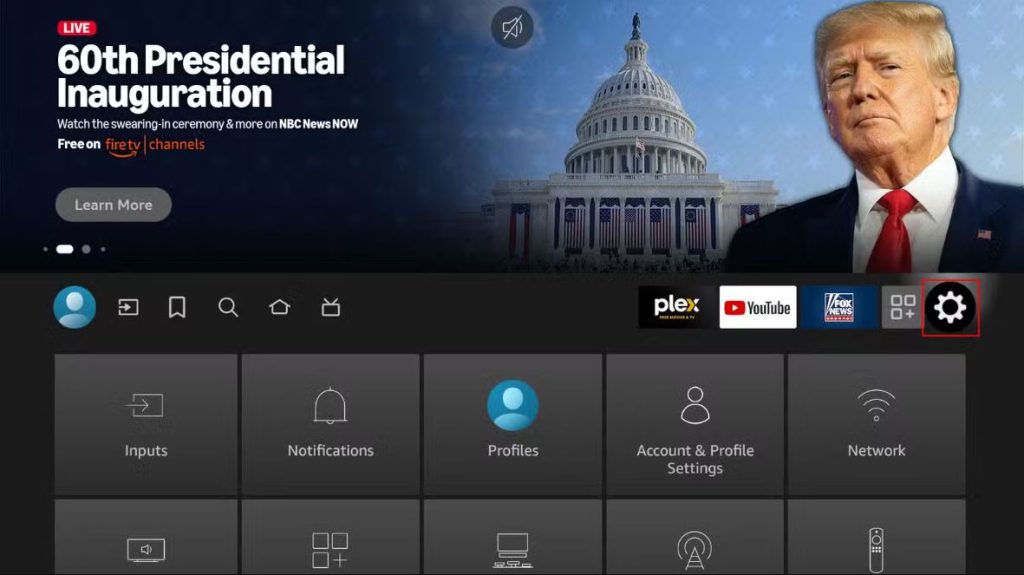
Step 2
Click the “Device and Software” option from the settings window.
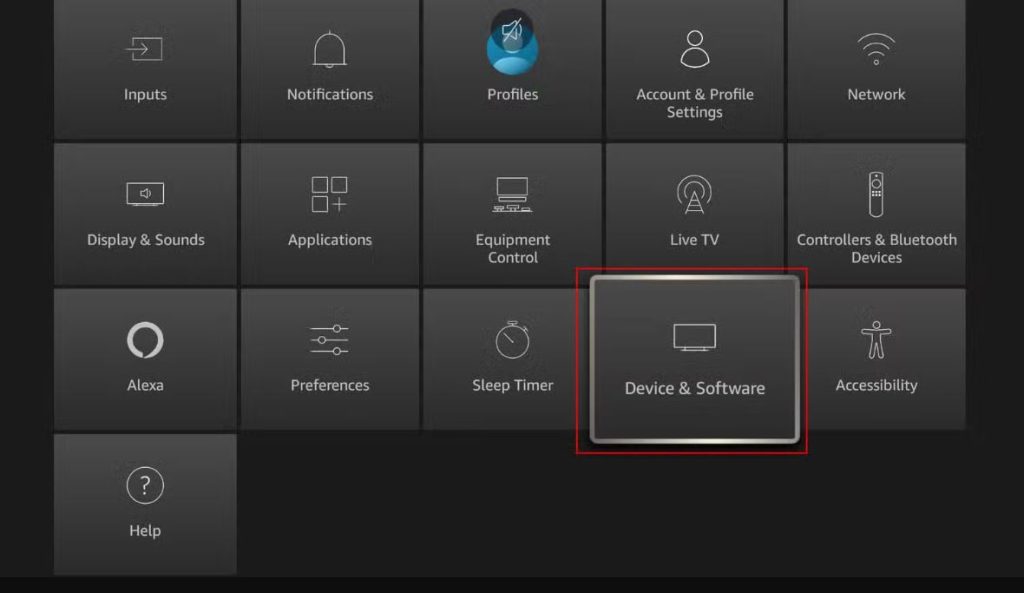
Step 3
Click the “About” button, and then from the new window, click seven times on the “Your TV” option as shown below. You will see a notification that will let you know that you are in developer mode now.
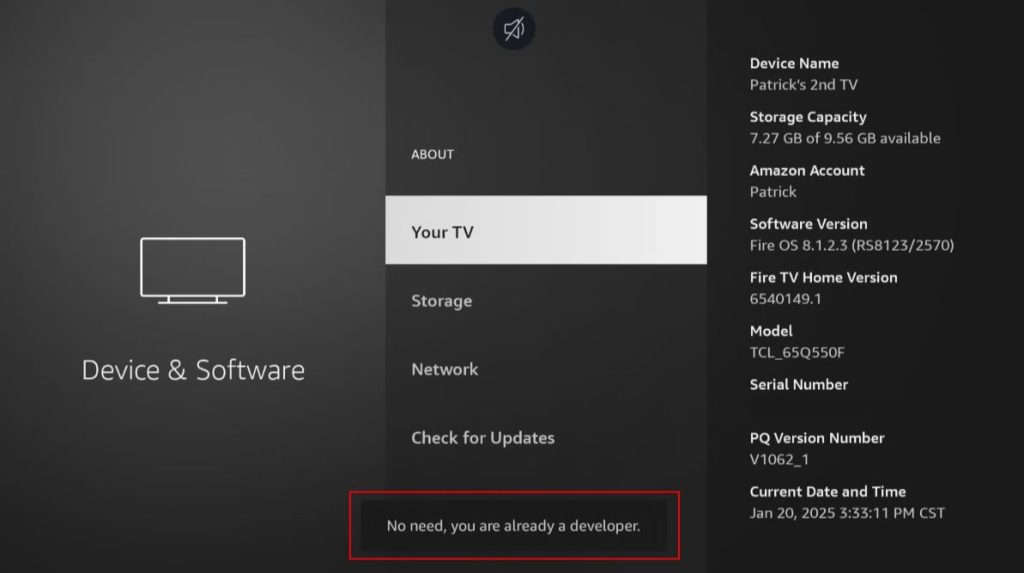
Step 4
You will see the new Developer Mode tab on the screen. Now, turn the USB debugging on and also allow “Install unknown apps.” Once this process is complete, you will be able to sideload apps.
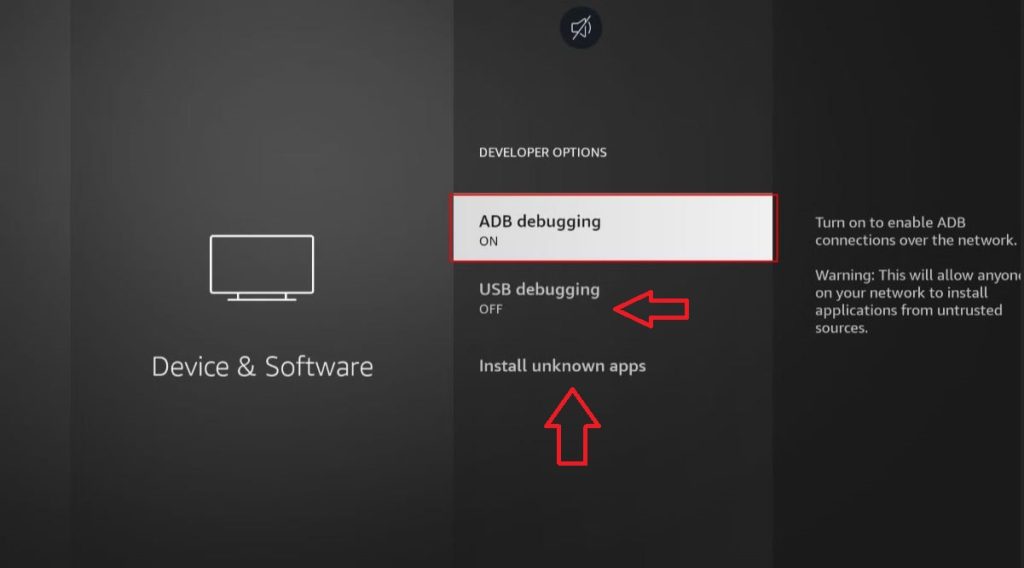
Your Amazon Firestick can install apps from 3rd party sources without causing any issue. This whole process of enabling UDB debugging does not take more than a minute or two. Now, let’s move to the next step of installing the Komodo IPTV app.
Part 2: Install Downloader App
For the ease of installing Komodo IPTV, you need the Downloader app on your Amazon Firestick. This app is used by millions of users and offers an interactive and simpler interface for sideloading apps to your streaming device. Here are the steps to install the Downloader app on your device.
Step 1
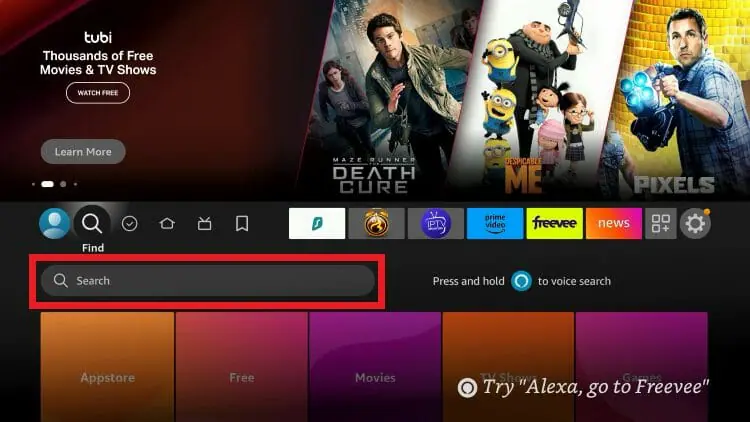
From the Home Screen, click the Find button and then enter the term “Downloader” in the search box.
Step 2
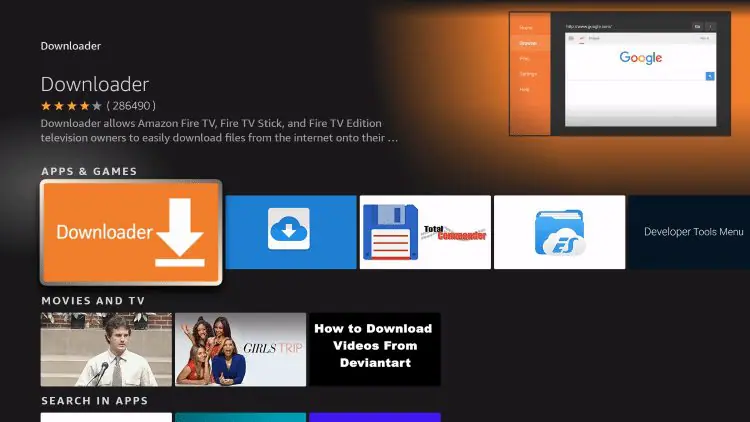
Usually, the first search result is the Downloader app that we need for our streaming device.
Step 3
Install the Downloader app and wait for a while until the app is installed. Once the download is finished, you will see the new Downloader app icon on your screen. You can change the position of the Downloader app on your screen.
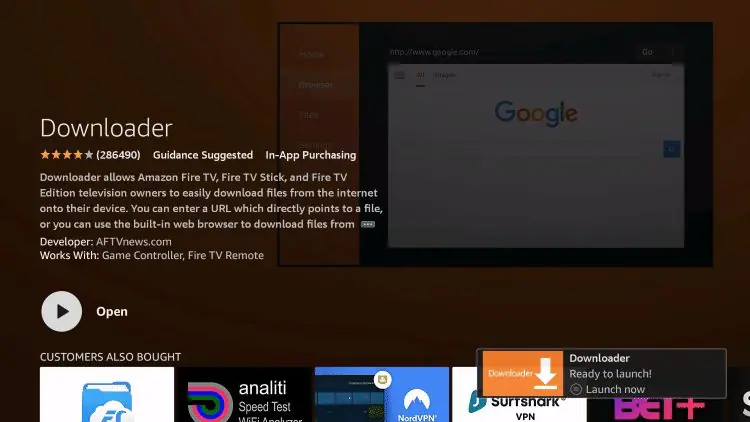
Your Amazon Firestick is all set to install iMax IPTV. This may seem like a lot, but when you follow the instructions in real-time, this whole process will seem easy and smooth.
Part 3: Set up Komodo IPTV on Firestick
Now is the time to install the Komodo IPTV service on your Amazon Firestick. Let’s see if we are on the right track. Have you enabled USB debugging, and the Downloader app is also installed, right? Now, follow the instructions and simple steps so that you can start enjoying thousands of TV channels, movies and TV shows on your Amazon Firestick without any buffering.
Step 1
From the Home screen, navigate to the Downloader app and launch. Make sure you have already followed the steps from Parts 1 and 2.
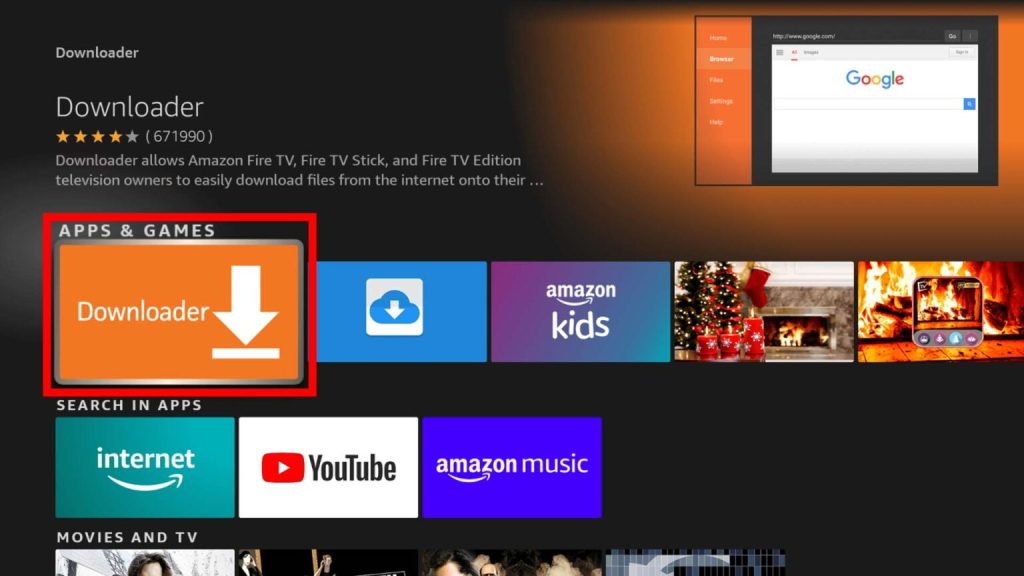
Step 2
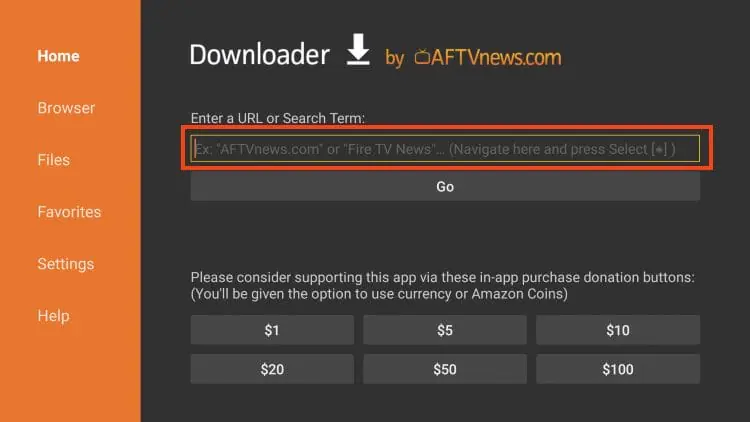
The Home screen of the Downloader app will show you a URL box where you can enter a URL, search term or short code. Enter 878523 in the search bar and press Enter. Users can also follow the URL: imaxiptv.com/download.apk to download the app.
Step 3
Install Komodo IPTV by following the on-screen instructions. The short code provides a straightforward way to install the Komodo IPTV app. Once installed, you will see the Komodo IPTV app icon on the screen.
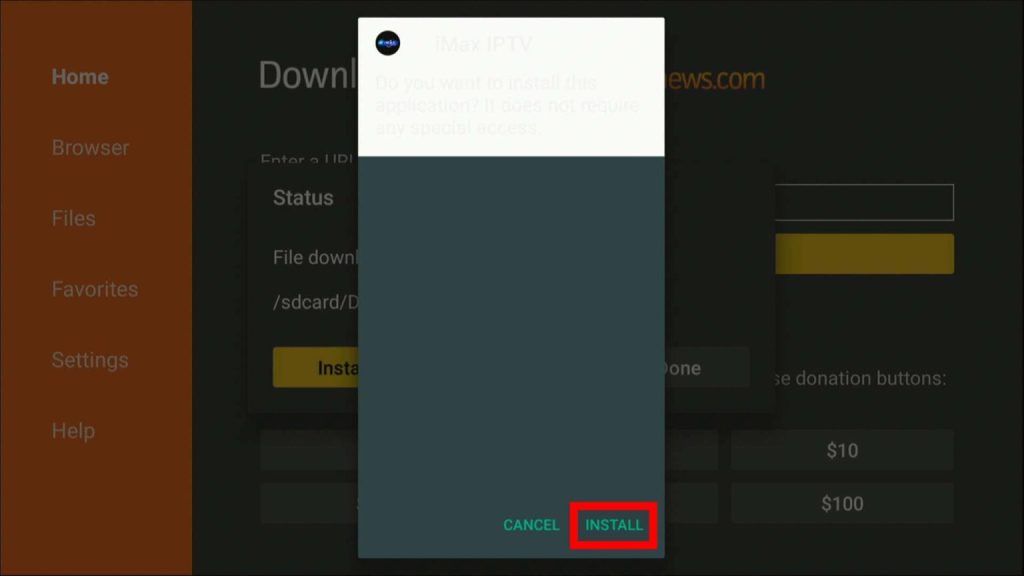
For your streaming device, Amazon Firestick, the Komodo IPTV app is successfully installed.
Part 4: Log in to iMax IPTV
Your streaming device is all set, and you are just a few clicks away from enjoying your favorite shows and channels on a premium IPTV service. Follow these steps to log in to your Komodo IPTV account. Step 1: Navigate to the Komodo IPTV app icon in the app section of the Amazon Firestick Step 2: If you are a paid member and have a subscription, use your login and password to log in and click “Add Playlist.” Step 3: You are now logged into the app, use the simple and clean interface to watch your desired movies, channels, sports events and on-demand shows.